Adreach is a digital service provider that offers agency accounts to businesses and advertisers. Our focus is on providing a secure and reliable platform for clients to manage their advertising activities.
Purpose
This guide explains how to add, activate, use, and remove a credit card to top up your account balance. It also covers how to find the OTP (activation code), what to do if you don’t receive it, and how to resolve common decline errors.
At a glance
Payment method: Major international credit cards
Top‑up fee: 7%
Minimum top‑up: USD $50
Provider: International payments are processed via Stripe.
Before You Start
Ensure your card supports international online transactions and is enabled for 3‑D Secure/OTP if required by your bank.
Have access to one or more of the following to retrieve the OTP:
SMS on your bank‑registered phone number
Email banking notifications
Internet banking (app or web) Transaction History
Banking service statements (e.g., Payoneer, Wise)
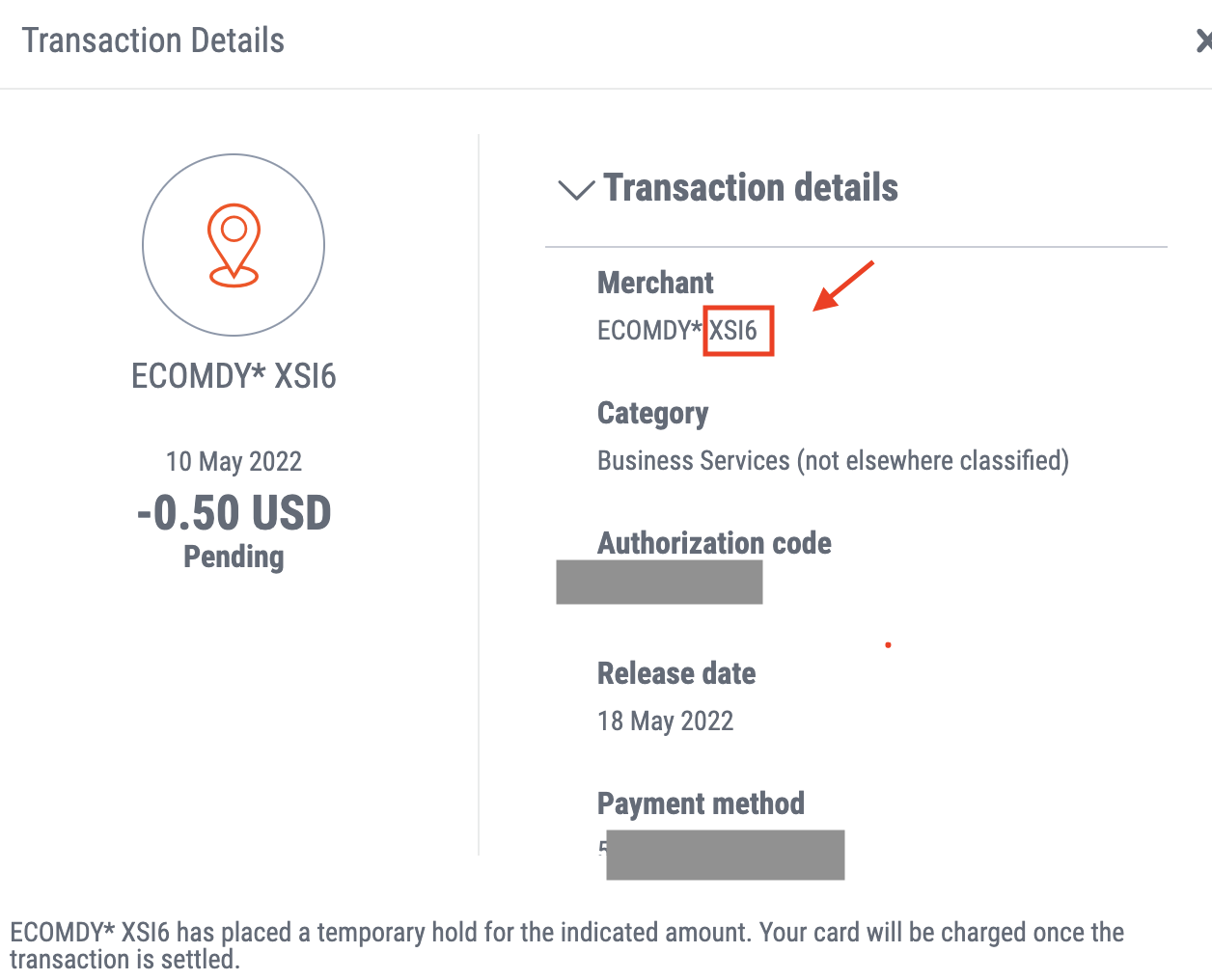
Be ready to verify a small temporary charge (e.g., $0.50) used for card activation.
Note
During activation, a micro‑charge (e.g., $0.50) may appear from the platform. This is normal and used to verify your card.
Step 1 — Add Your Credit Card
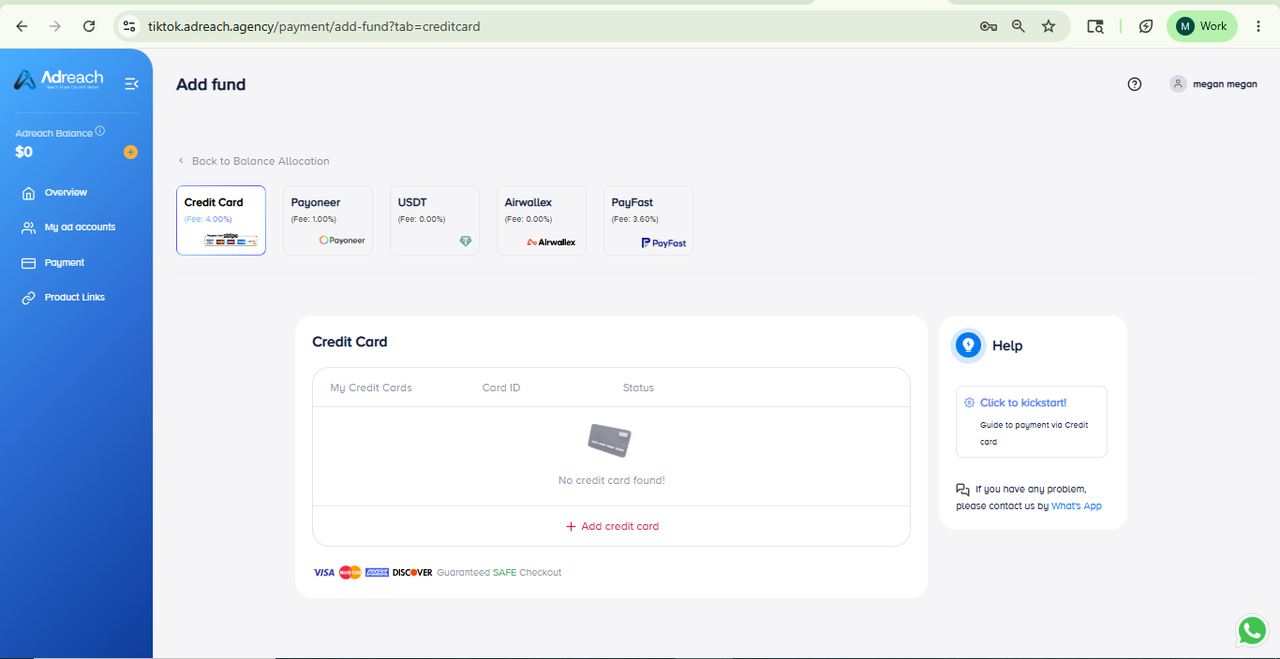
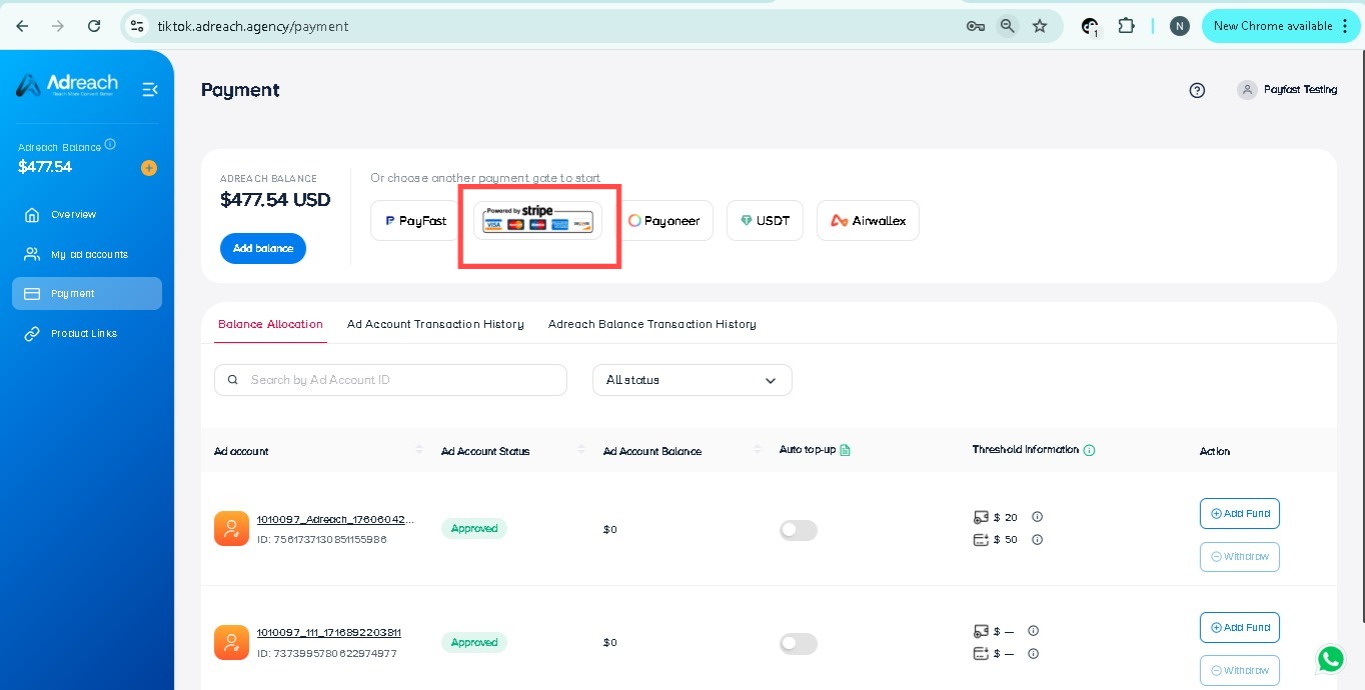
1. Go to Payments › Credit Card.
2. Select Credit Card as your payment method.
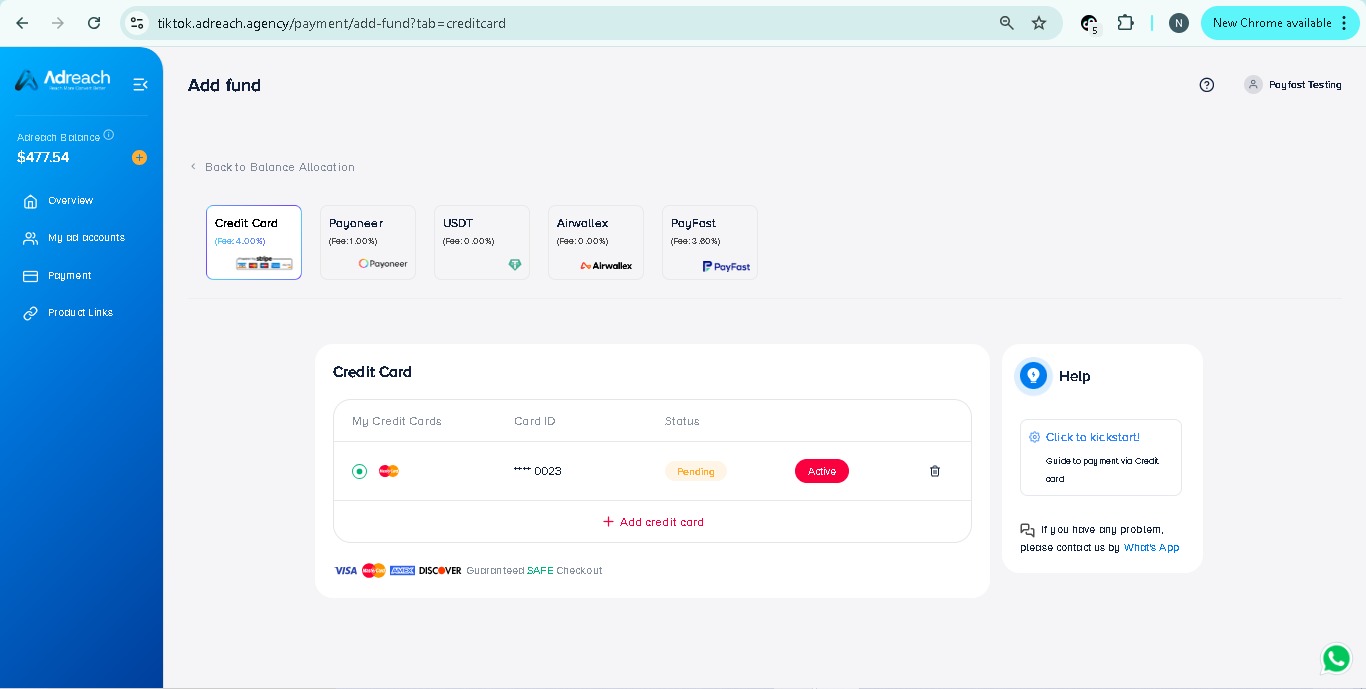
3. Click + Add Credit Card.
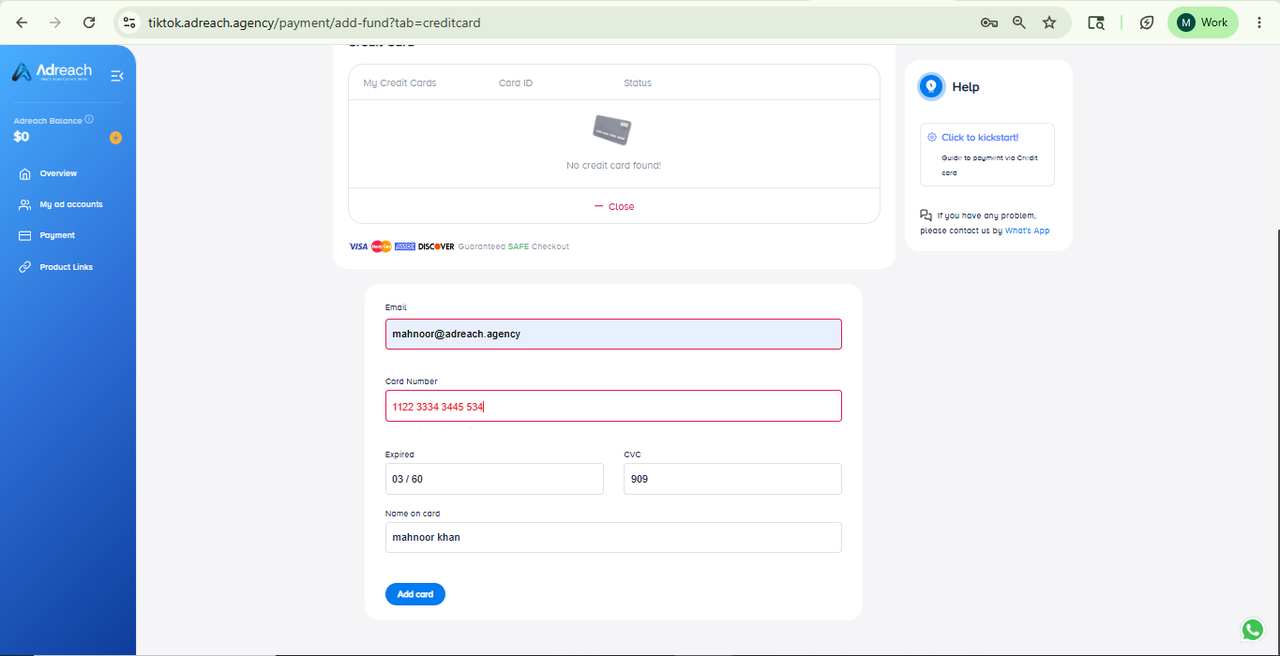
Enter your card details and click Add card.
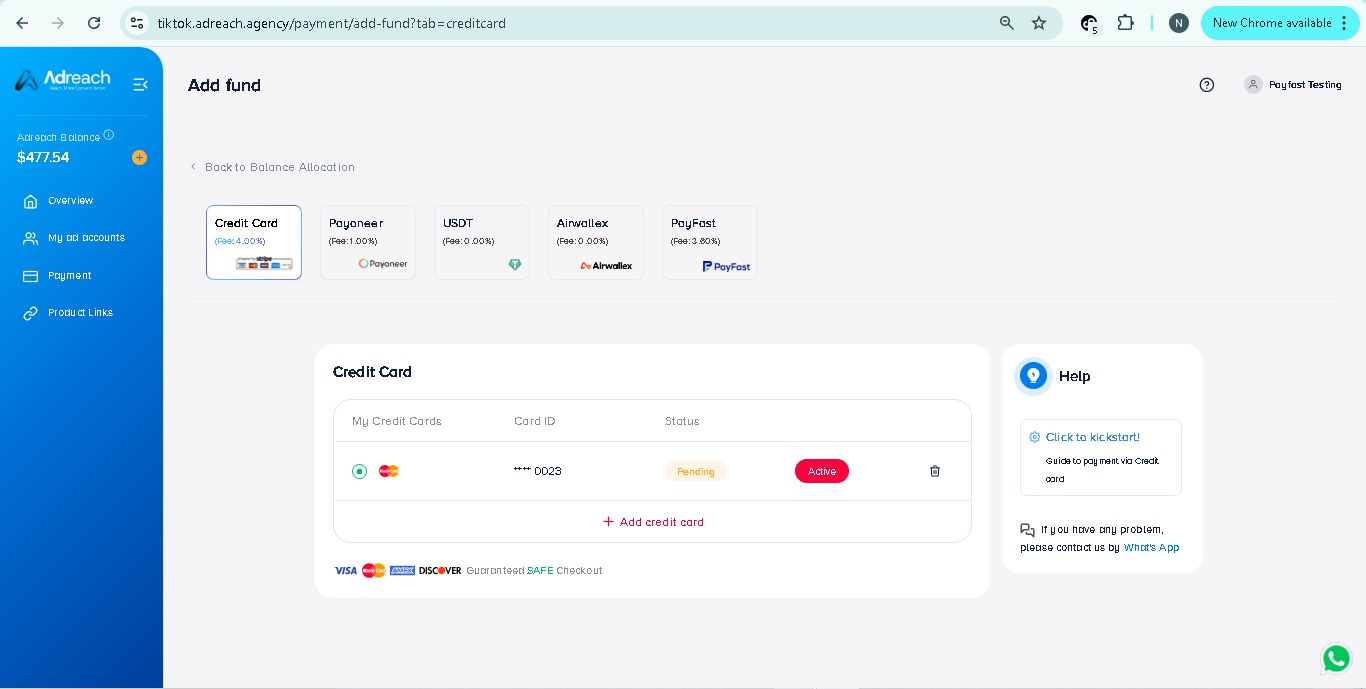
After the card is added, you will see it listed with status pending. Click Activate to proceed.
In case you want to add the second card (you added funds successfully and all your left bar was active), select “Payments” >>> “Credit Card” and do the same as your previous one.
Step 2 — Activate Your Credit Card
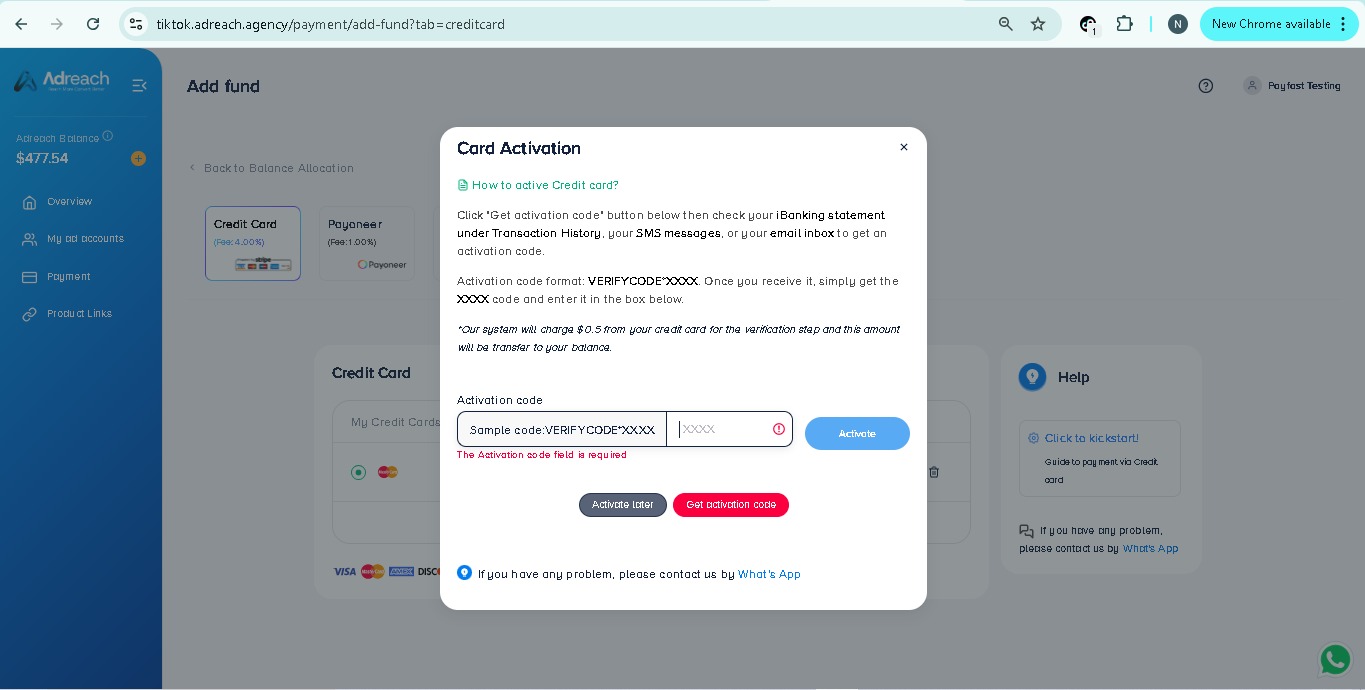
In Credit Card tab >> click Active
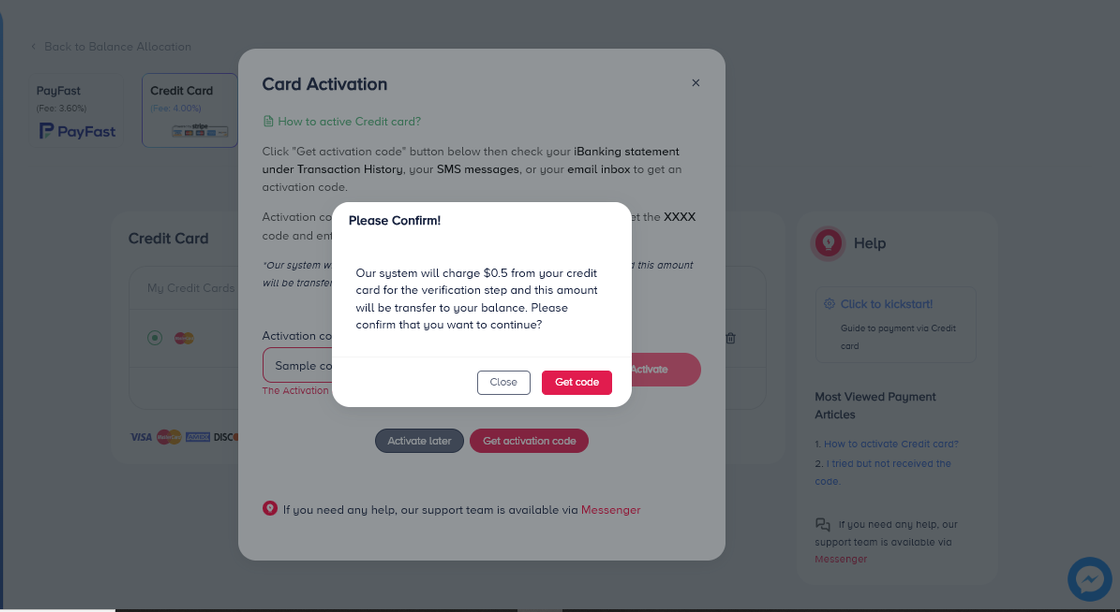
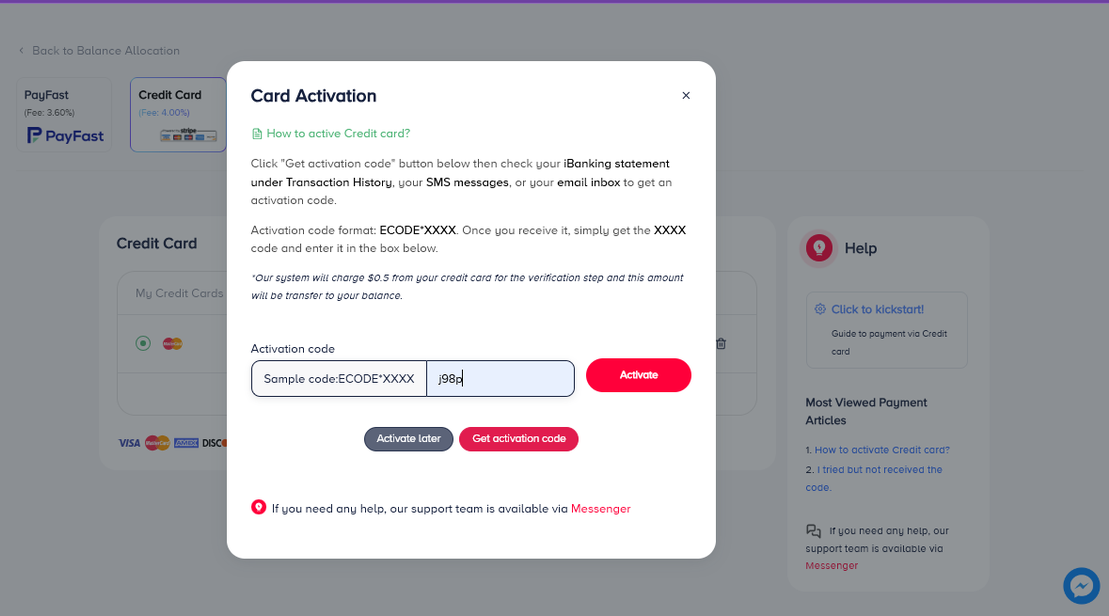
Click Get Activation Code then Get code to trigger the OTP.
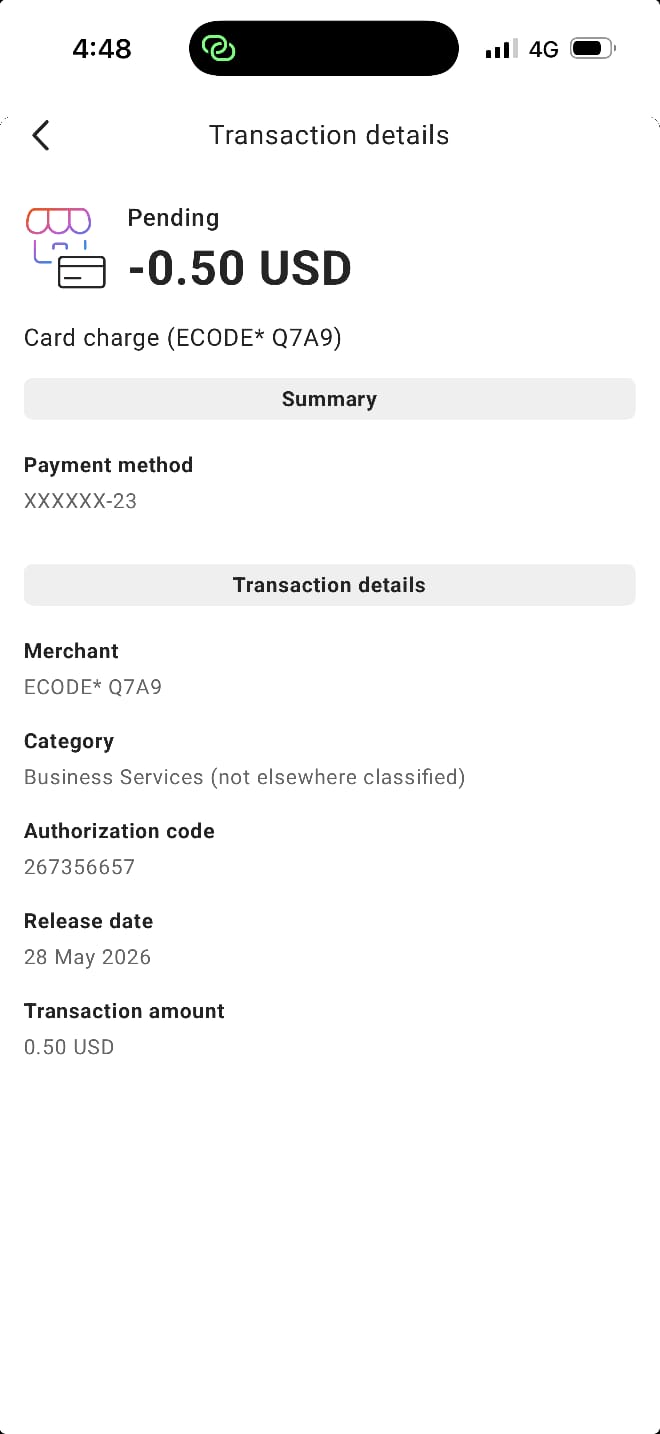
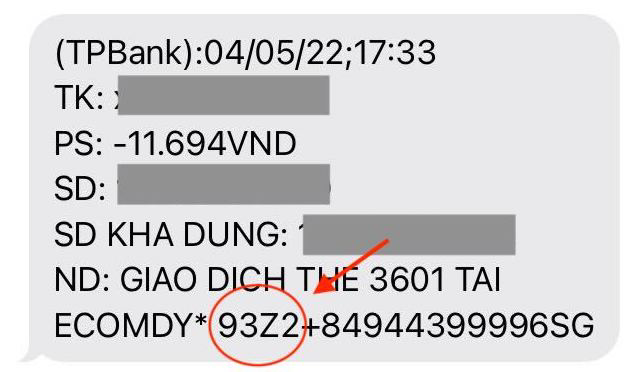
Retrieve the 4‑digit OTP from one of the sources listed in 2a.
Enter the 4‑digit code in the field provided and click Activate.
Enter your code and click “Activate“
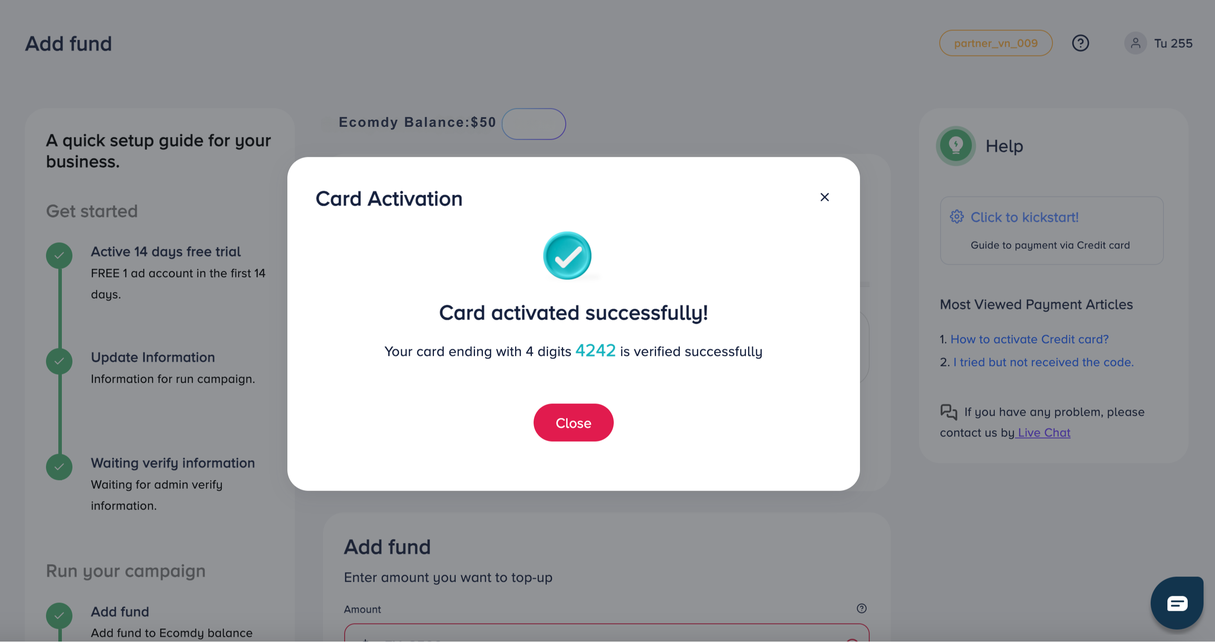
After activation or clicking, your card will be successfully activated.
1. You should see a confirmation that your card is Active.
Result Once active, you can immediately use the card to top up your balance.
2a — Where to find the OTP
A 4‑digit OTP is sent to one or more of the following locations:
SMS (to your bank‑registered phone number)
Internet Banking (Web): Check Transaction History
Email Banking (if enabled by your bank)
Banking services such as Payoneer or Wise: Check your account statement
2b — If you do not receive the OTP
If your card shows a $0.50 verification charge but you still cannot find the OTP:
Prove card ownership and request an OTP resend.
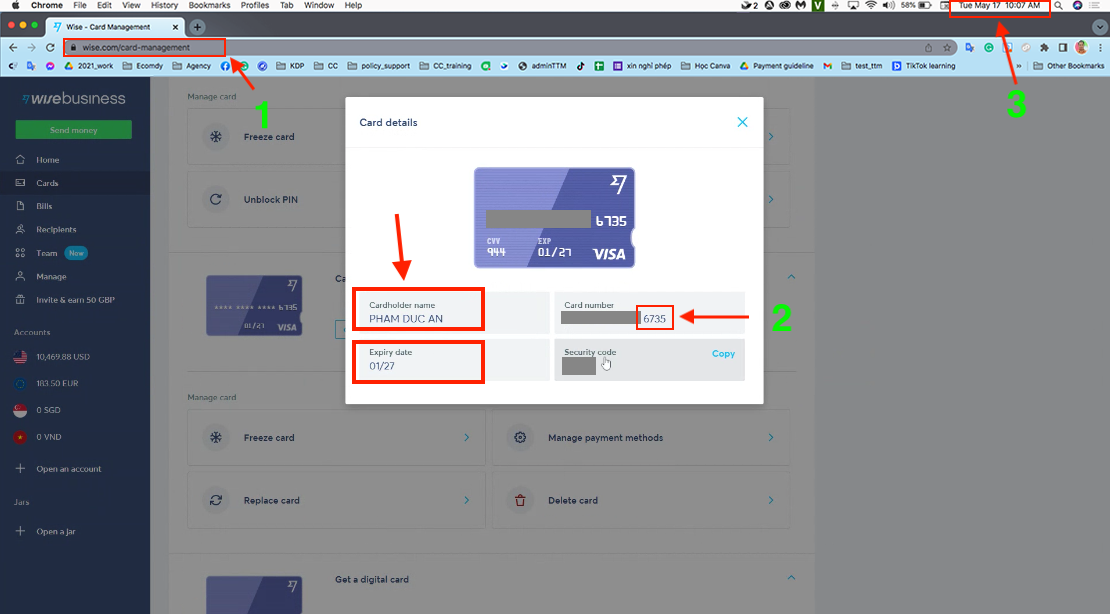
For Virtual Cards — send a full screenshot showing:
1. Card service URL/link
2. Cardholder name
3. Last 4 digits of card number
4. Expiration date
5. The current time on your computer
Privacy
Mask the card number—show only the last four digits.
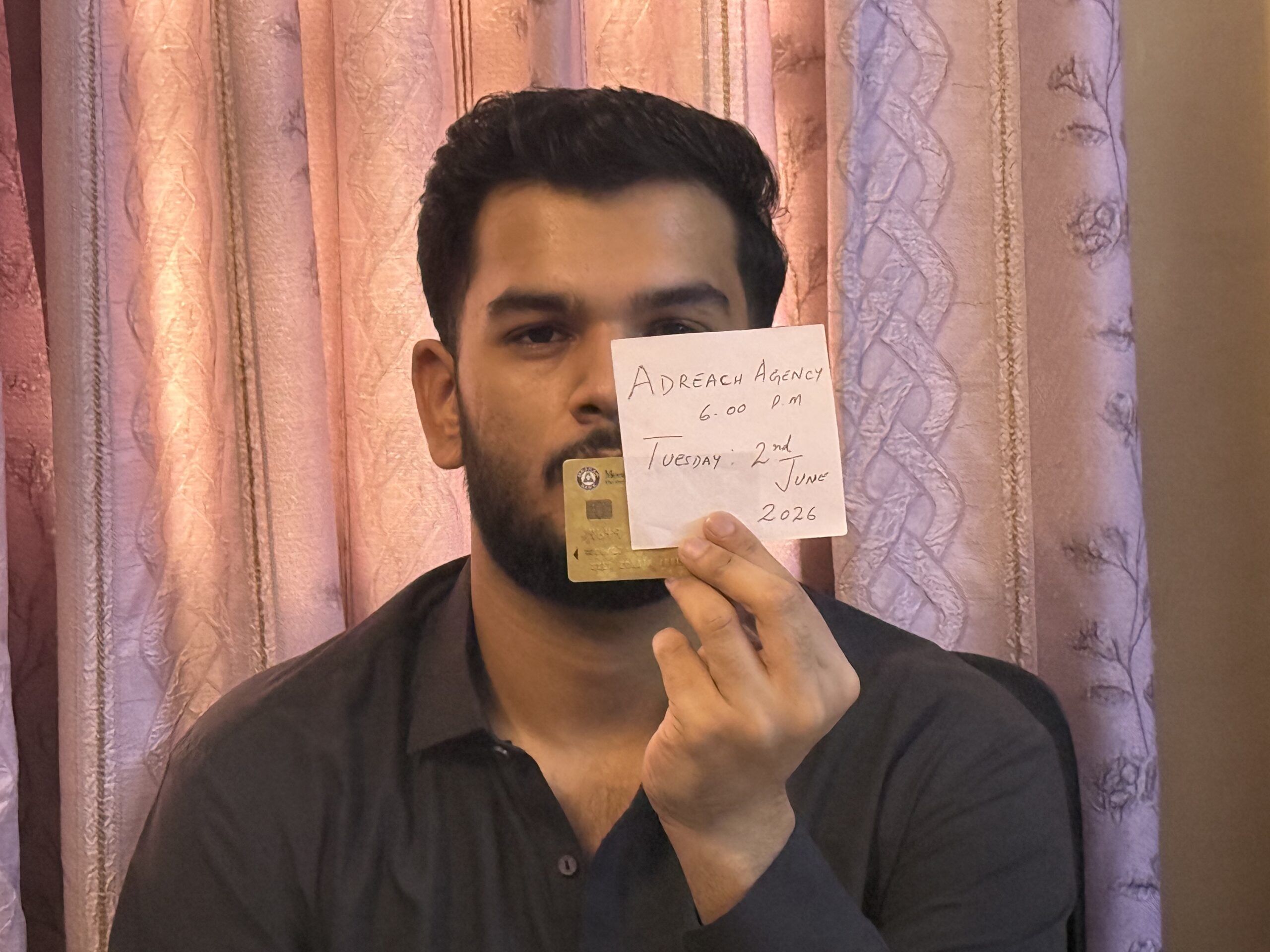
For Physical Cards — send a photo of you holding your card and a handwritten note:
Card must clearly show:
a. Cardholder name
b. Last 4 digits
c. Expiration date
Handwritten note text:
“Ecomdy Media – Your country current time – Date”
Safety
Cover the card number and show only the last four digits.
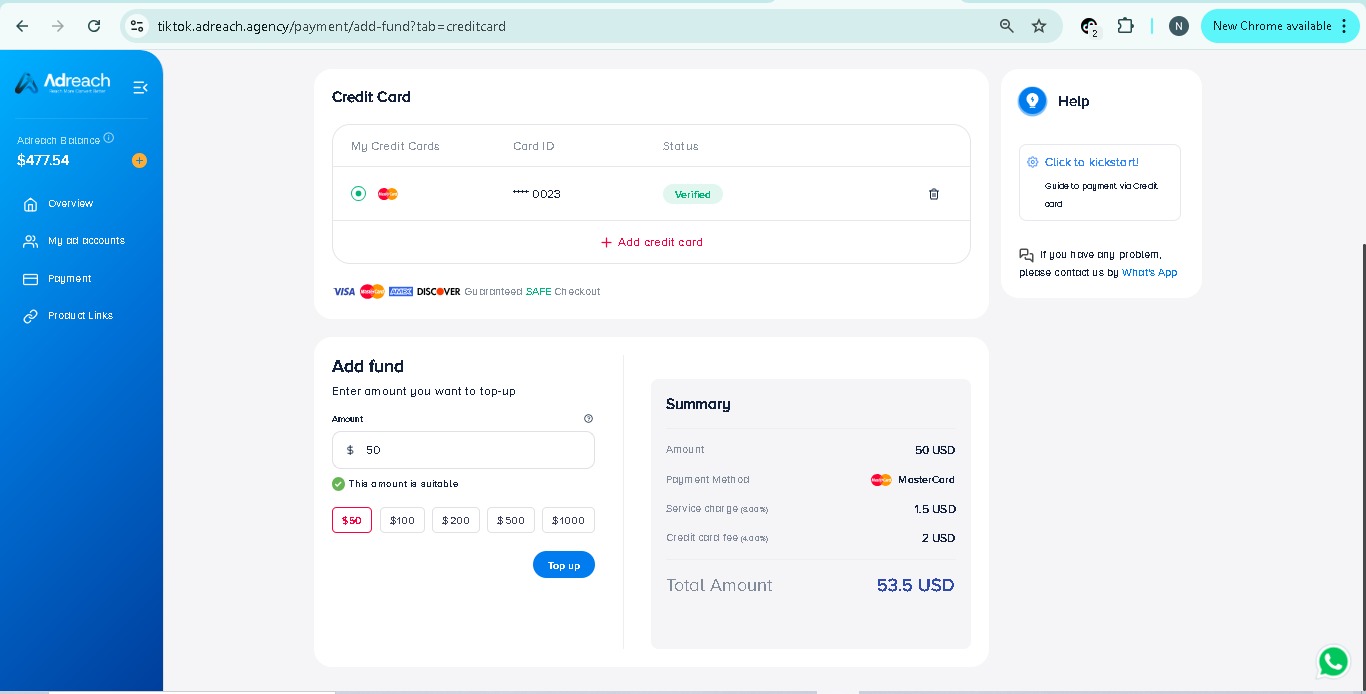
Step 3 — Top Up" by Credit Card
1. Go to Payments › Credit Card.
2. Ensure your card status is Active.
3. Enter the Amount (minimum USD $50).
4. Click Top up.
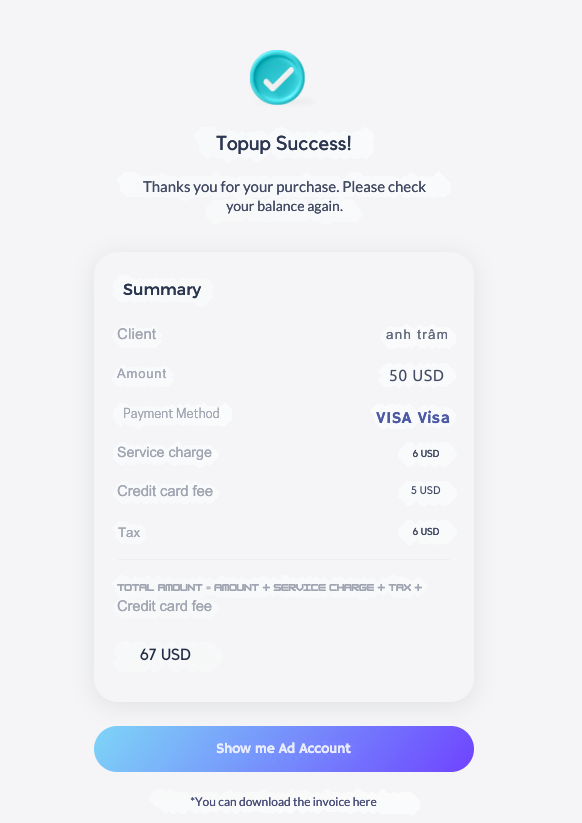
You will see Top up successfully once the payment is approved.
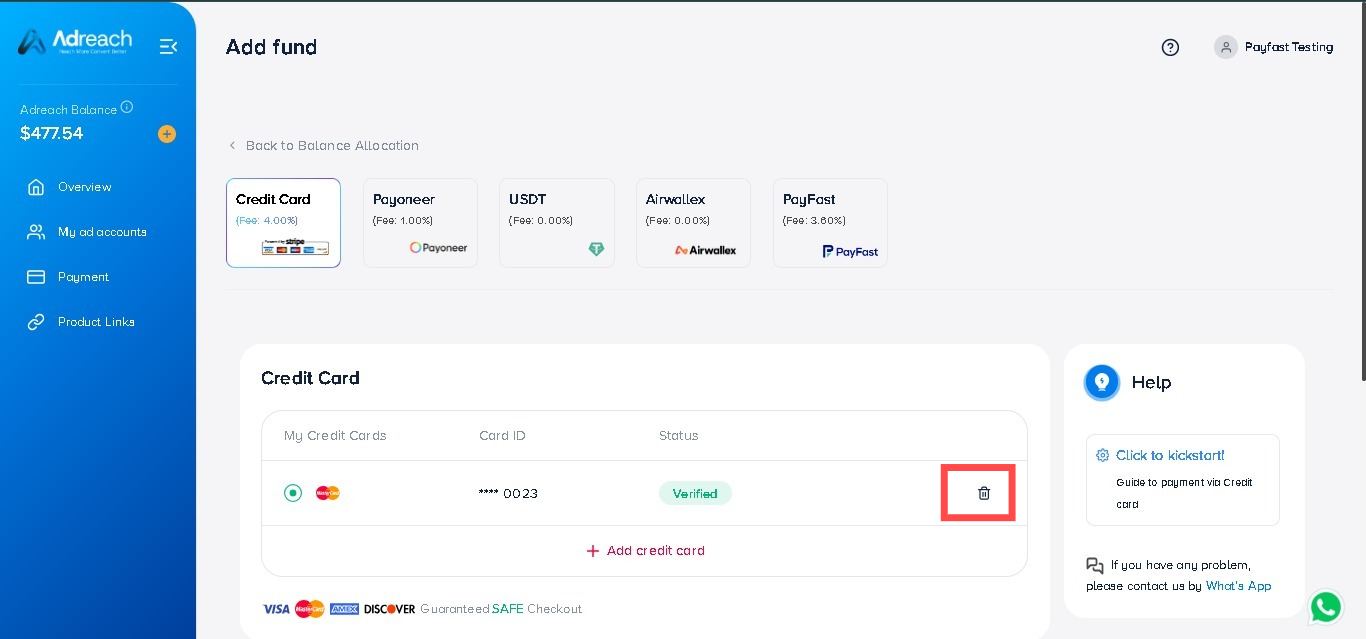
1.4 Step 4: How to Remove your Credit Card?
If you want to remove the credit card from our platform. Simply click on the bin icon showing on the right side, your card will be removed.
Thank you. If you experience any difficulties with topping up via credit card, please feel free to contact our support team for assistance.


 +92-337-2499502