Auto Top-Up automatically adds funds to your ad account when your balance drops below a set threshold, ensuring your campaigns run without interruption. This eliminates manual payments and helps maintain consistent ad performance.
Overview
Keep your campaigns running smoothly with Auto Top-Up, the intelligent, hands-free solution for your ad account. This feature eliminates the need for constant balance monitoring and manual fund transfers. Instead, it automatically adds funds to your account whenever your balance falls below a threshold you set. With Auto Top-Up, you ensure your ads remain live, maintain consistent audience reach, and prevent unexpected pauses from affecting your performance.
You can choose:
The minimum balance (when the top-up should happen)
The amount to add each time
This way, you don’t have to manually add funds again and again.
Why Use Auto Top-Up?
Avoid Ad Interruptions:
Ensure your ads stay active and do not stop due to insufficient balance.
Reduce Manual Effort:
Set up once and eliminate the need to repeatedly add funds.
Maintain Budget Control:
Choose when the top-up happens and how much is added each time.
Gain Peace of Mind:
Focus on campaign performance without worrying about account balance.
Best Practice:
To maintain campaign stability and avoid interruptions, we advise setting a minimum balance that provides an adequate buffer for your average daily ad spend.
How To Auto Top-Up Your Ad Account Balance?
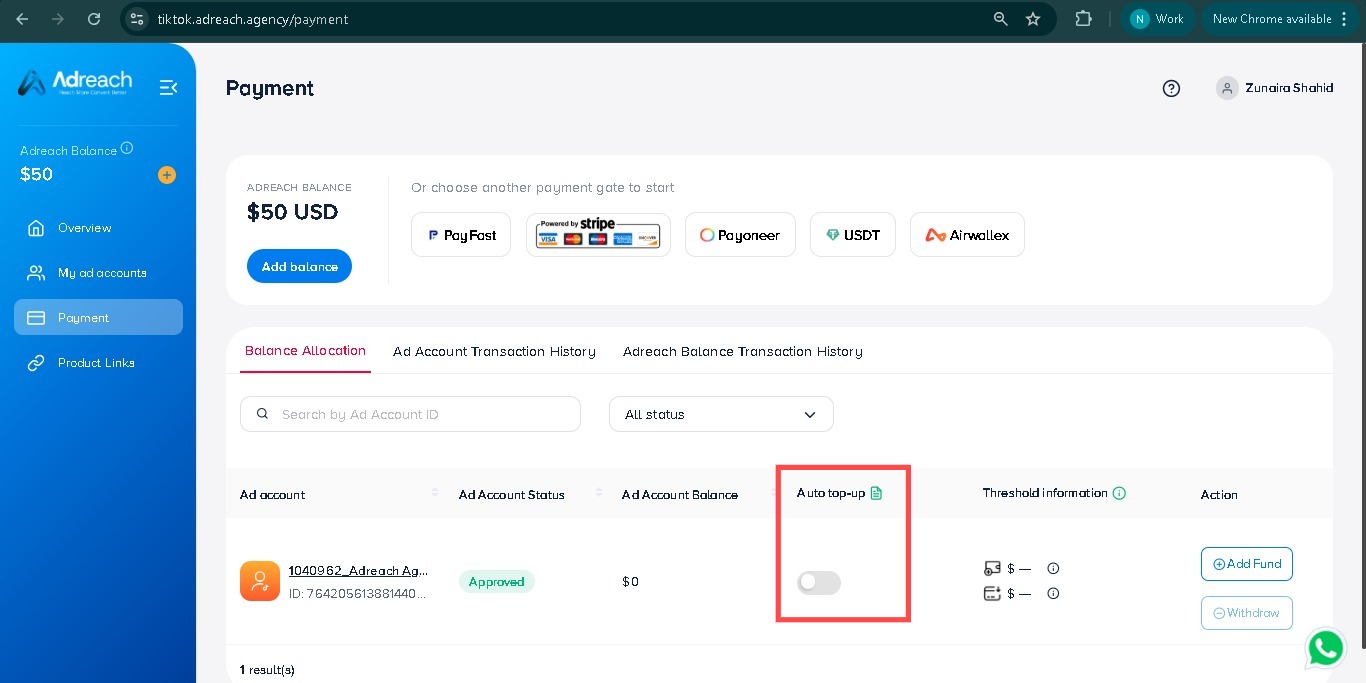
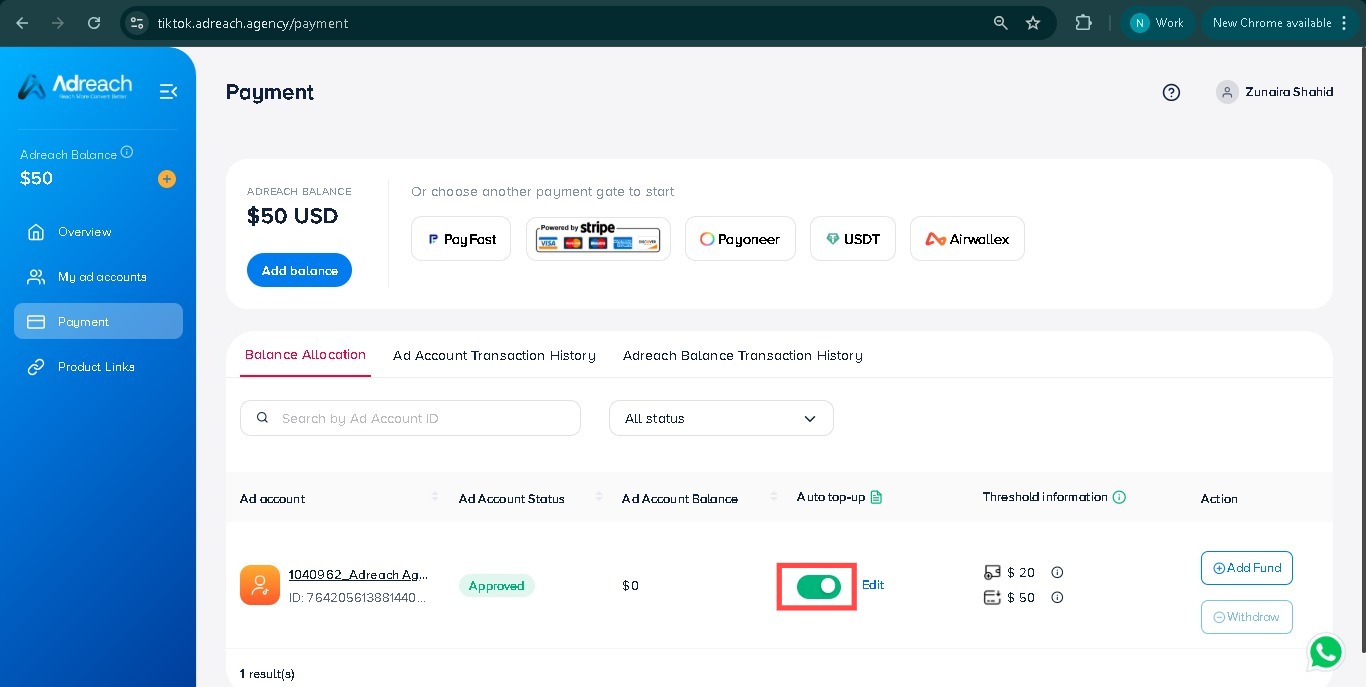
Open the “Payment” tab or “My Ad Account” tab
From the account you want to turn on this feature, click the toggle “On” in the “Auto top-up” column.
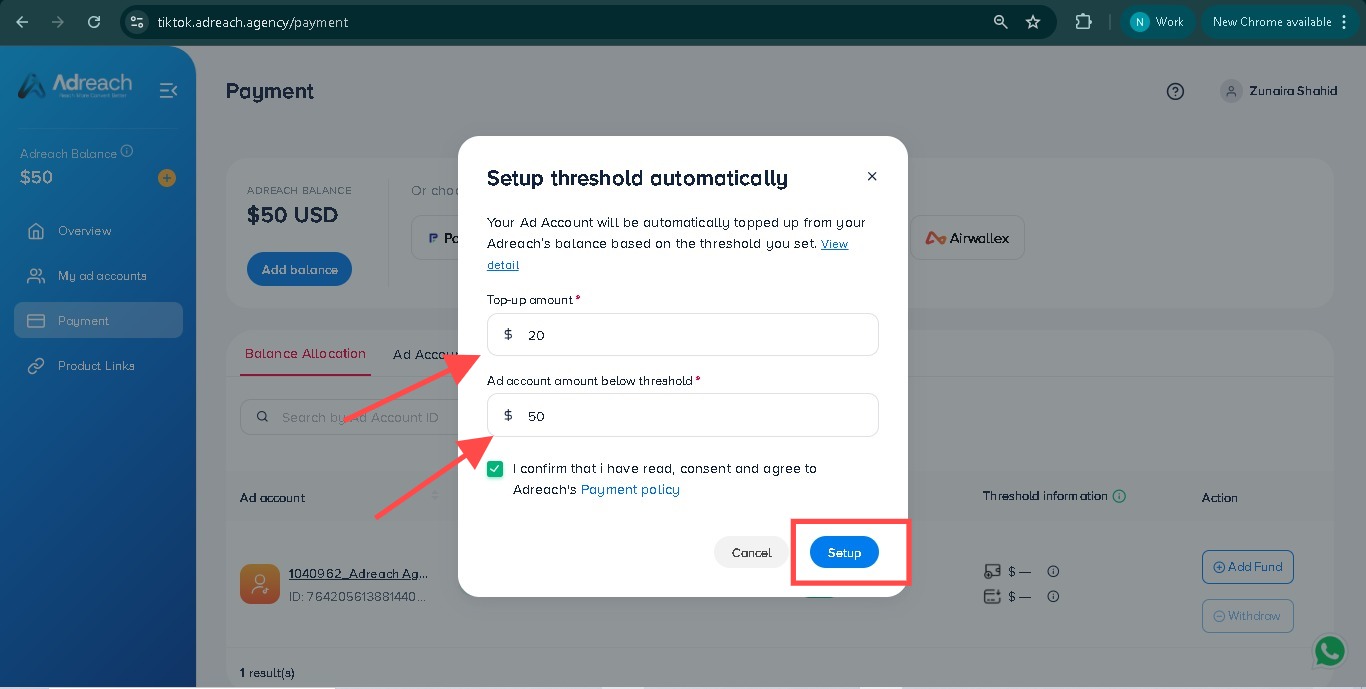
Set up the amount that will be transferred to your ad account when it reaches your setting threshold.
Click “Setup” to complete your settings.
Note
Top-up amount: minimum $20, maximum $10,000.
Ad account amount below threshold: minimum 50$, maximum 10,000$.
Note:
If you don't have enough Adreach wallet balance, please add funds first, then you can set it up again.
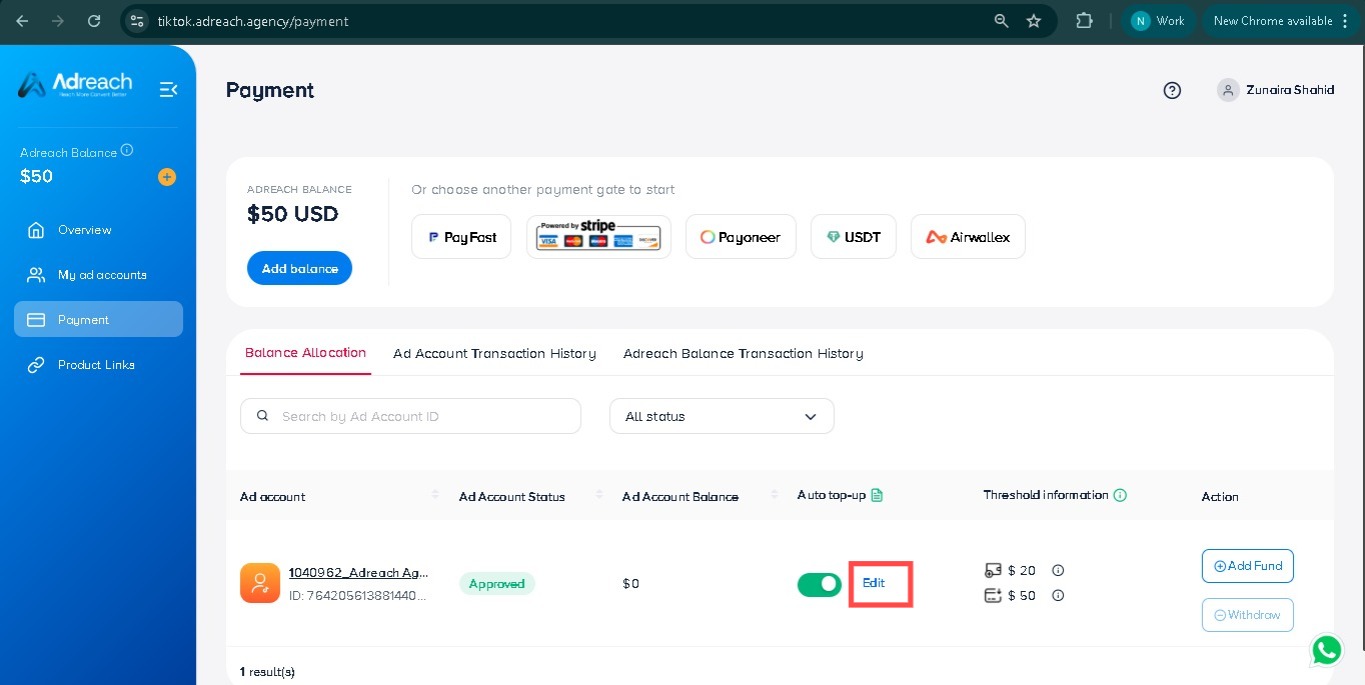
If you want to edit your auto top-up settings, click on “Edit.”
Now you can edit your threshold.
How To Turn Off The Auto Top-Up Feature?
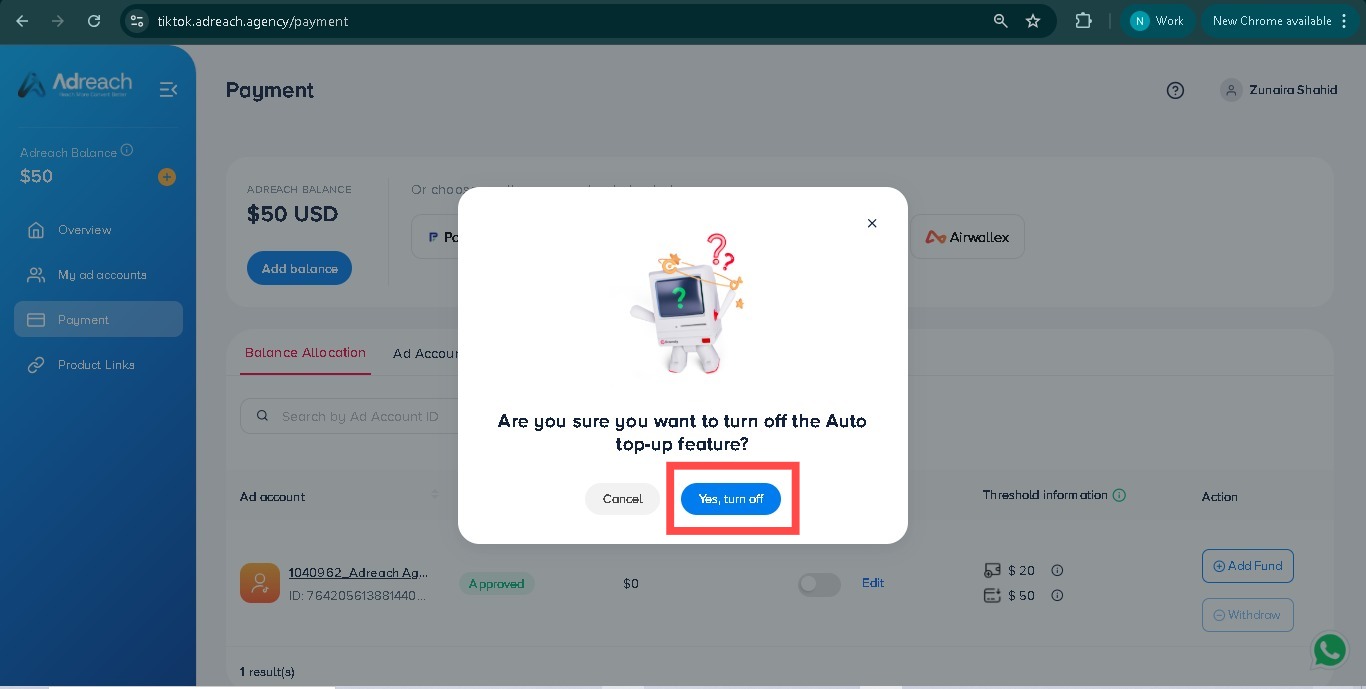
In case you want to turn this feature off, please turn the toggle off.
Click on “Yes, turn off.”
If you need any assistance or have questions during the process, feel free to contact us at Live Chat, We’re here to help!

 +92-337-2499502