A pixel is a piece of code that you can place on your website that allows you to share website events with TikTok. It can help you find new customers, optimize your campaigns, and measure ad performance.
Step 1 – Add the TikTok App to your Shopify Store
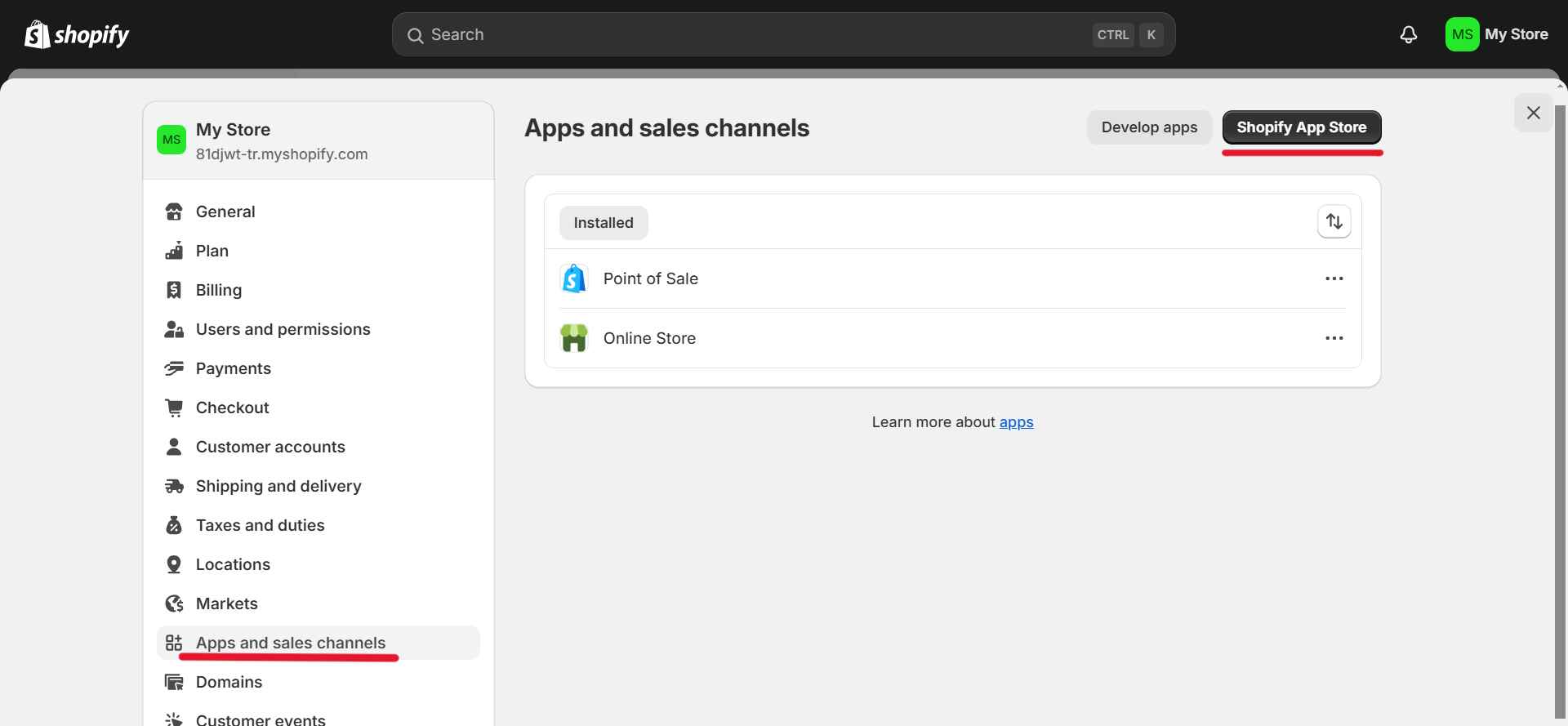
1. Go to "Settings", then go to "Apps and sales Channels" and then go to Shopify App Store.
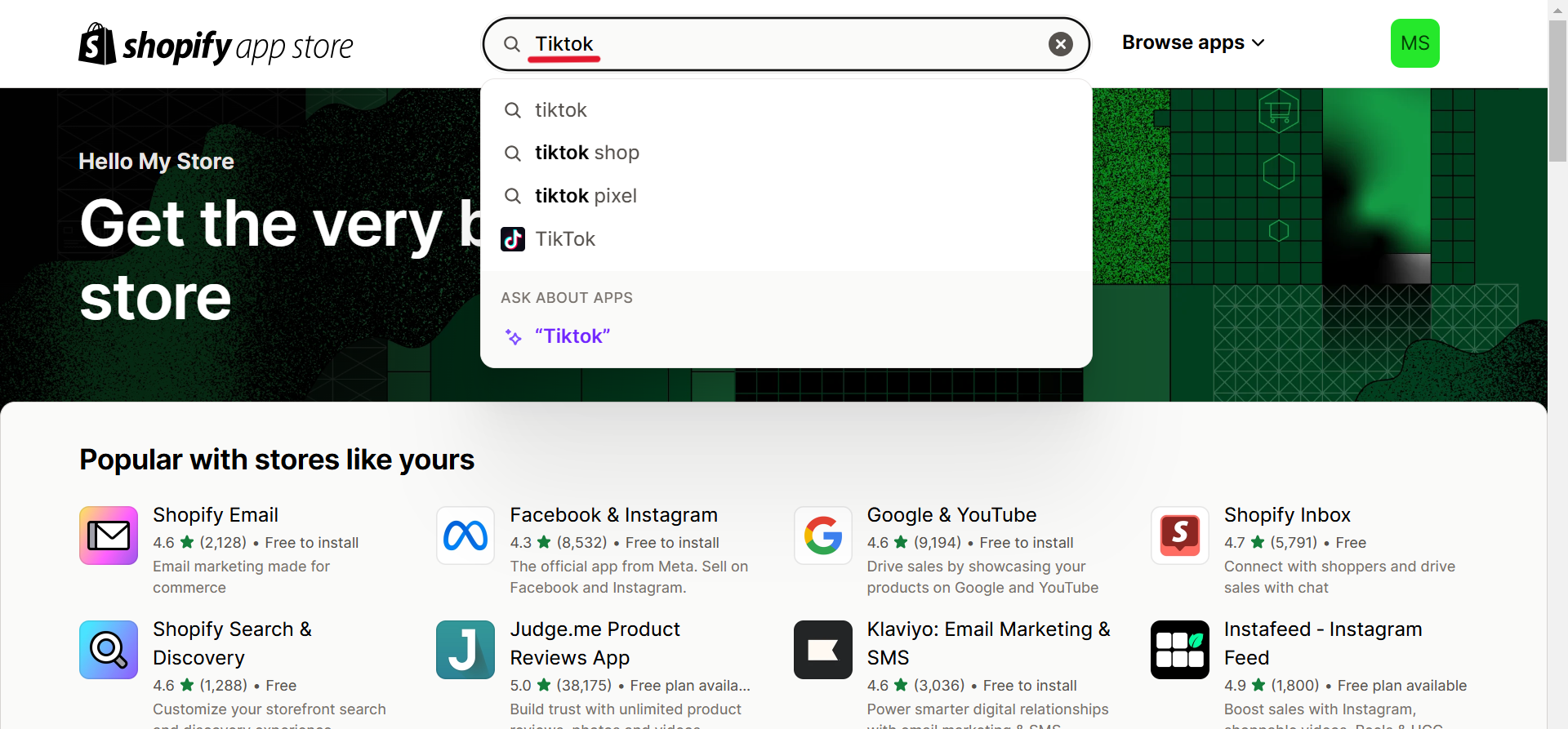
2. Type TikTok into the search bar in the Shopify App Store.
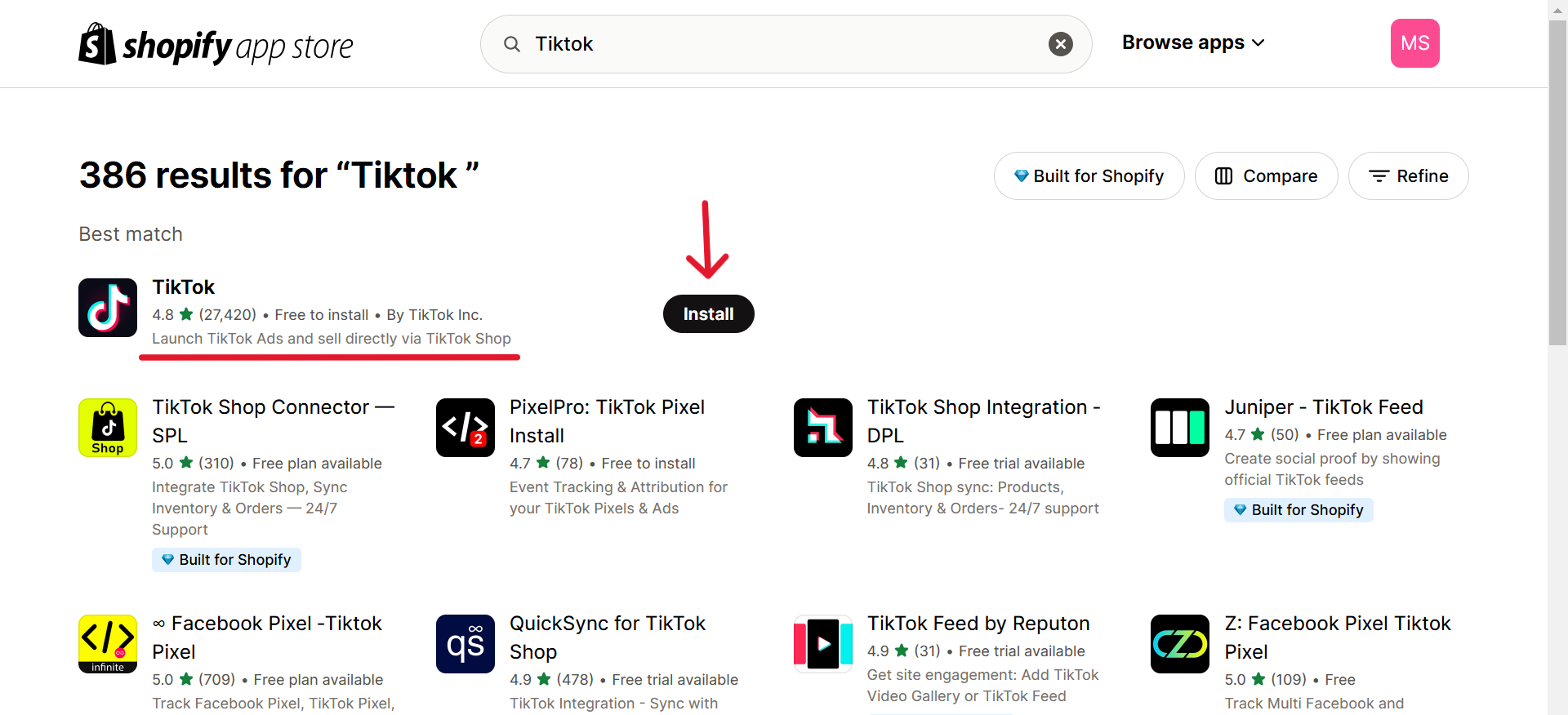
3. Select the official TikTok by TikTok Inc. App.
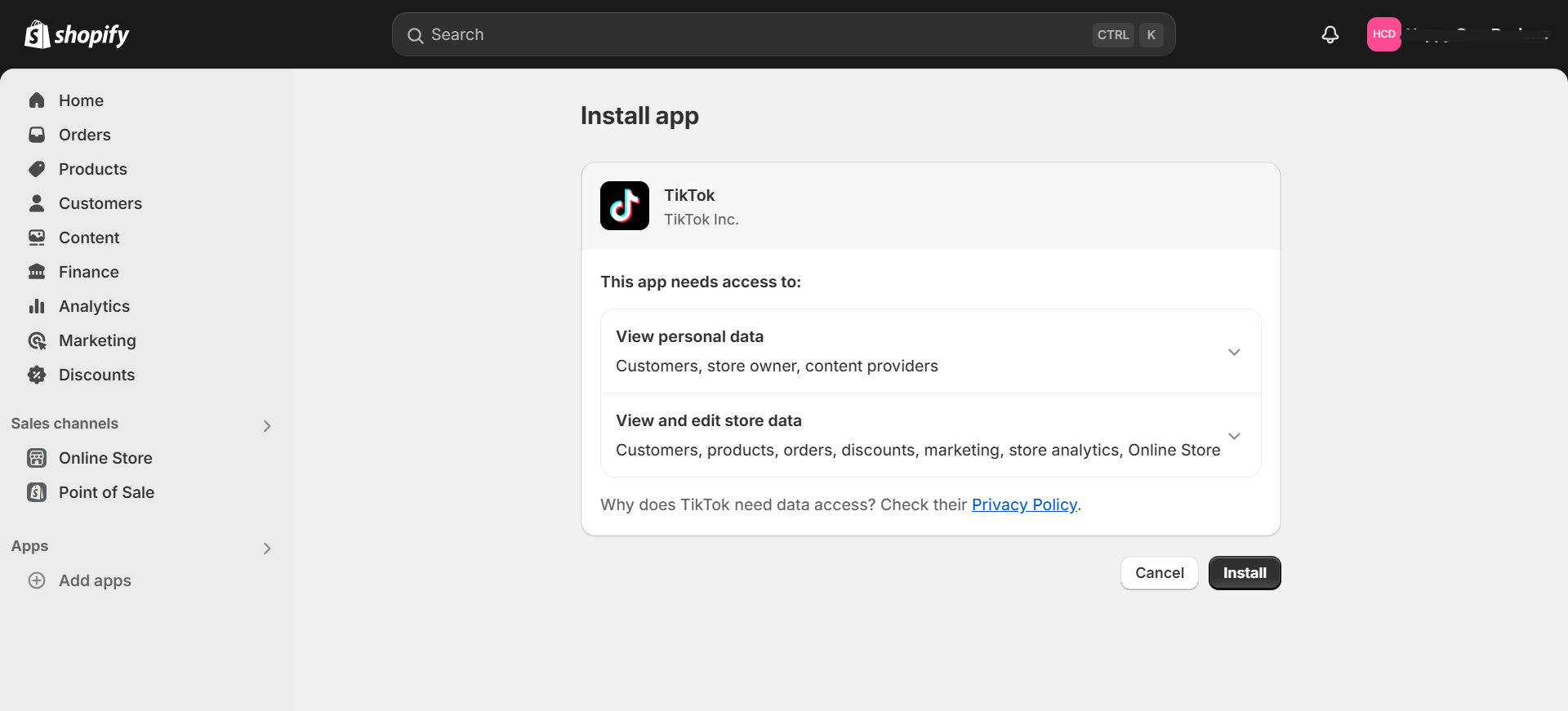
Step 2 – Install App
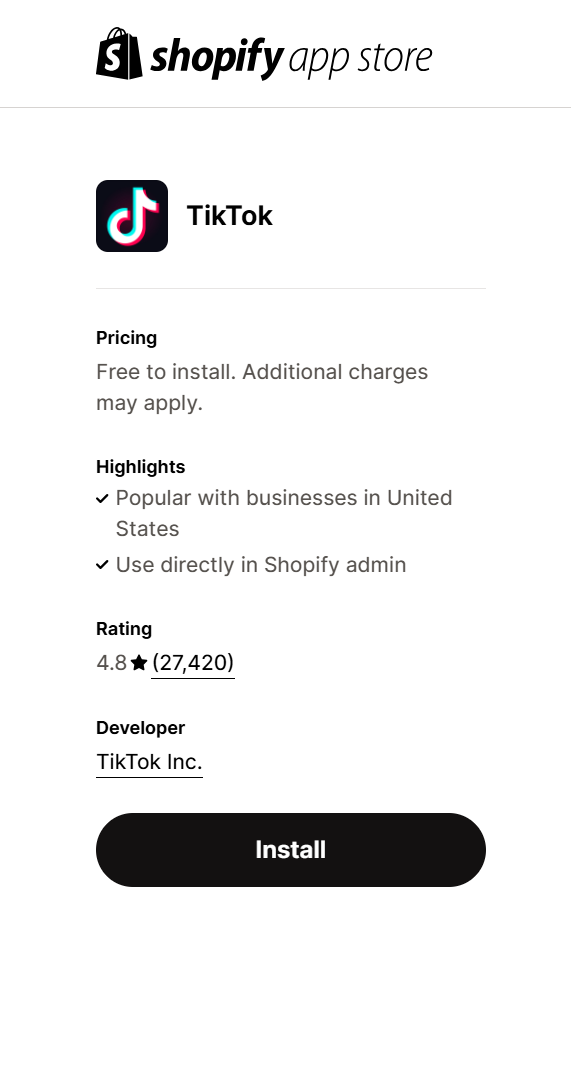
Make sure to install this one.
This page will show when you will show your interest in installation, click on Install.
Step 3 – Connect your Tiktok for Business Account
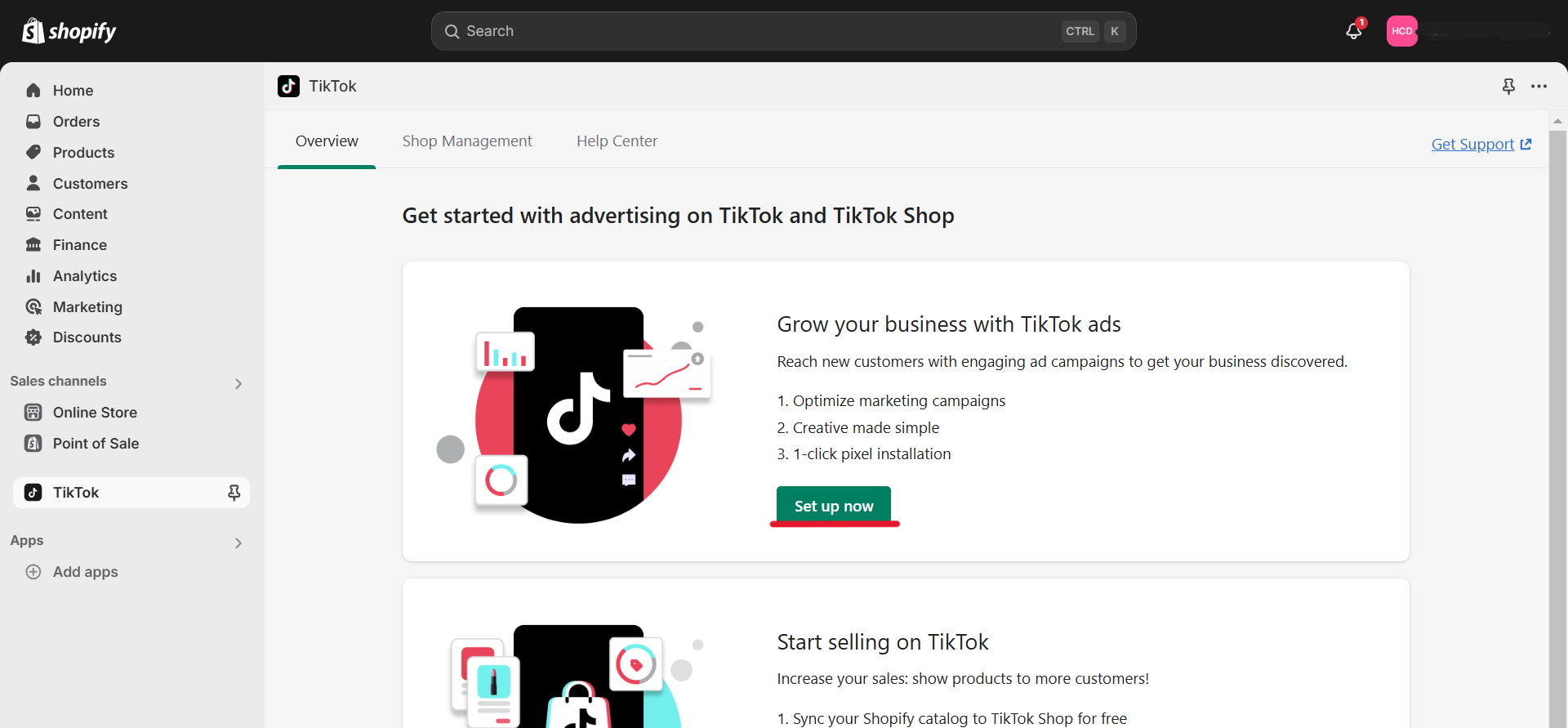
1. Click Set up now, Grow your business with TikTok ads.
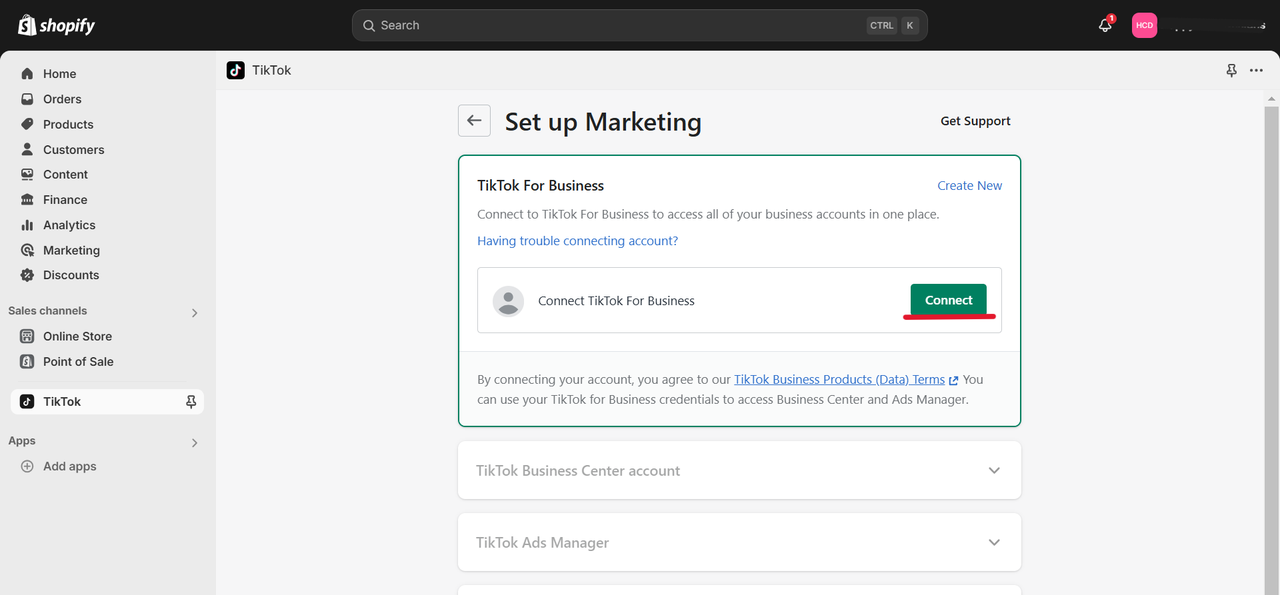
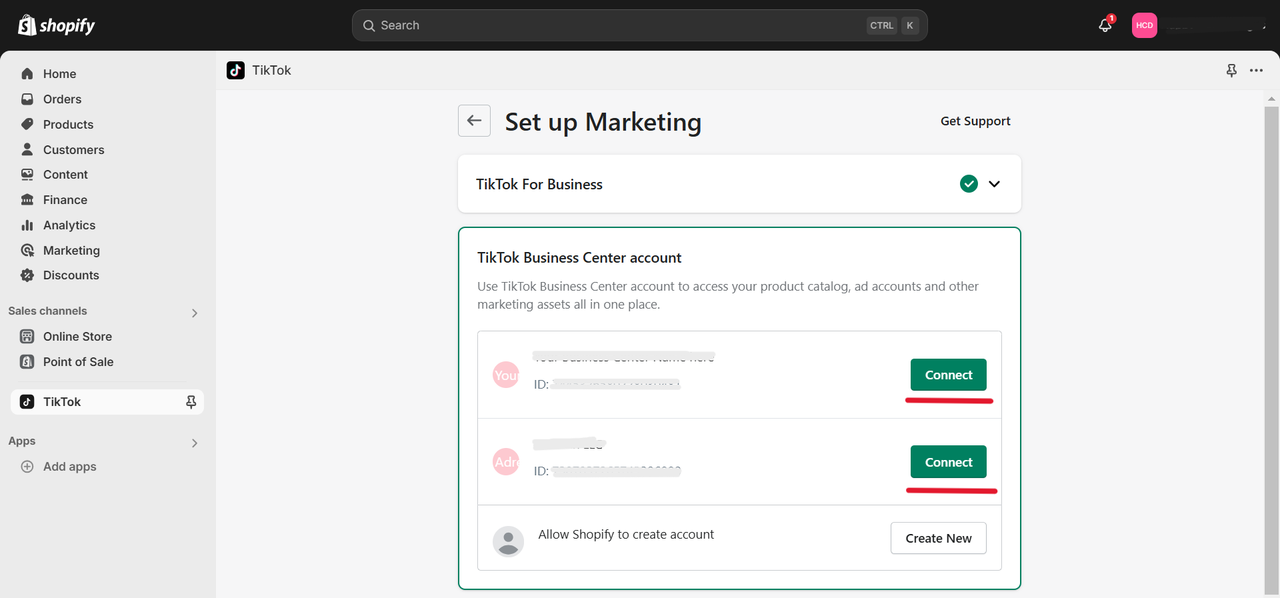
2. Click "Connect" to connect Tiktok for business.
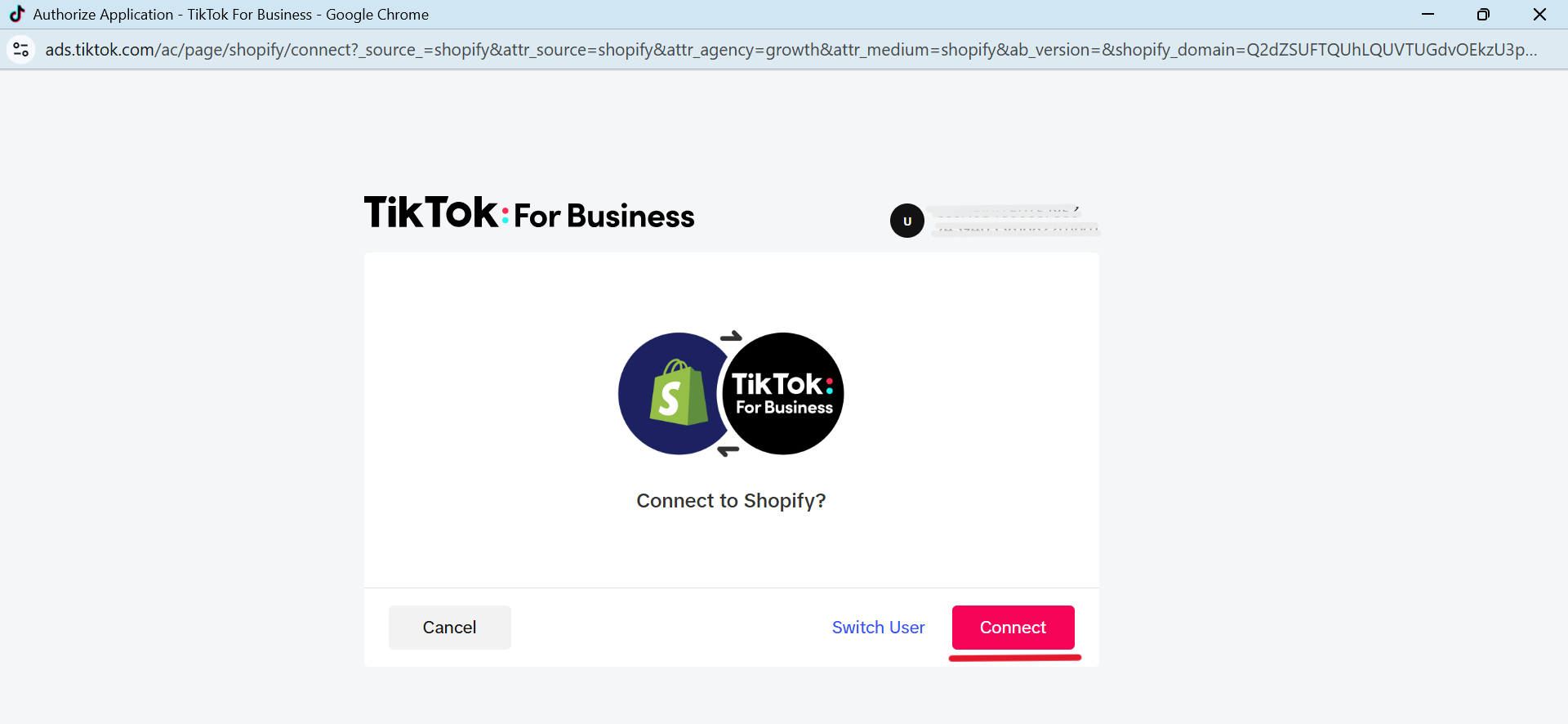
3. Click "Connect".
4. Click "Connect" and Connect the business Center to which your ad account is assigned.
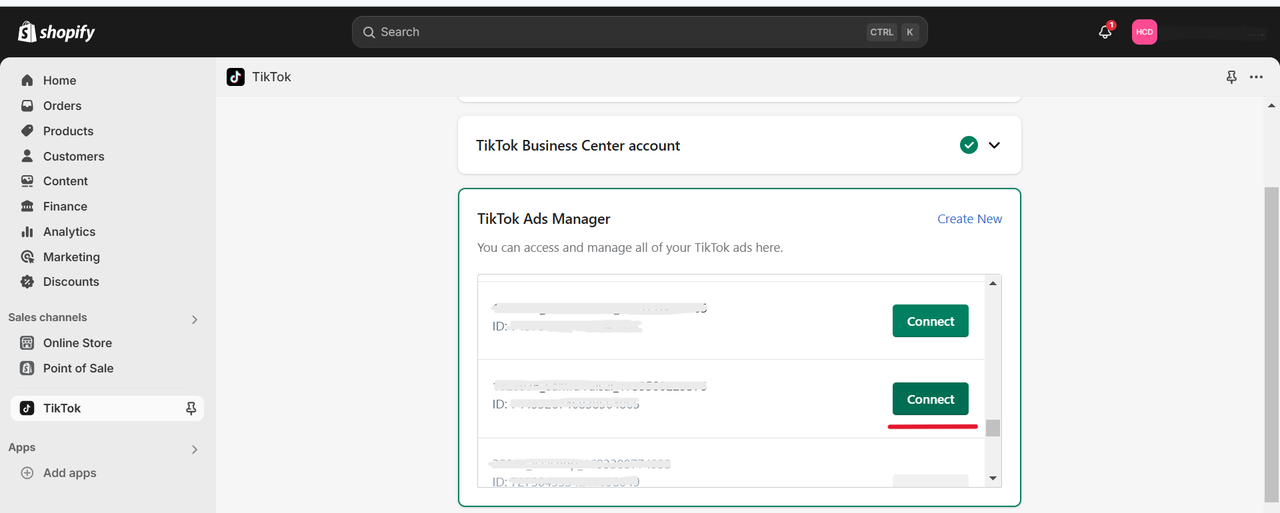
Step 4 – Connect your Ad Account
1. Click "Connect" and Connect your Ad Account with your store.
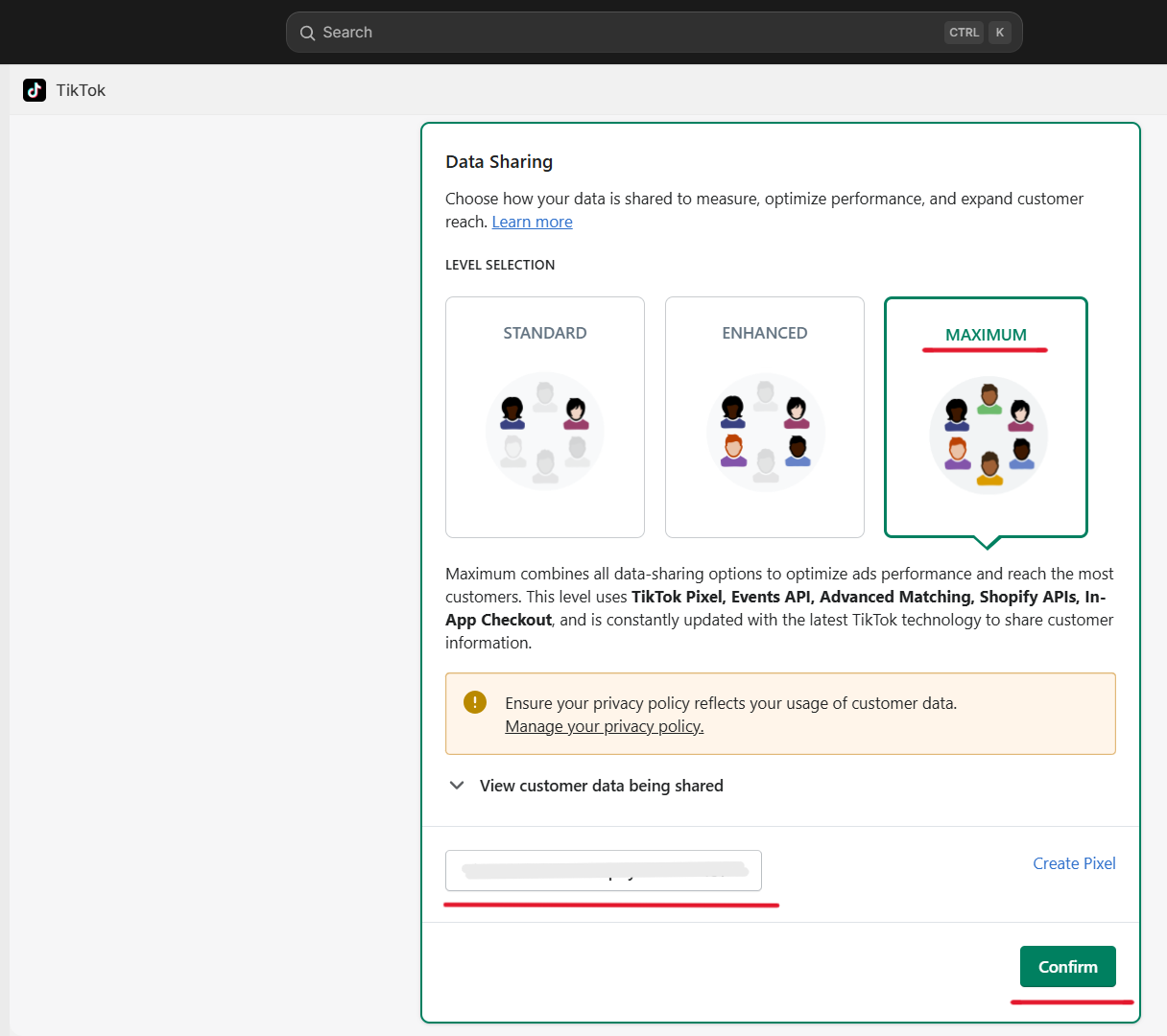
Step 5 - Choose Your Data Sharing Level
Connect existing Pixel or create a new Pixel.
1. In Data Sharing select "MAXIMUM", then click "Confirm" to choose an existing Pixel.
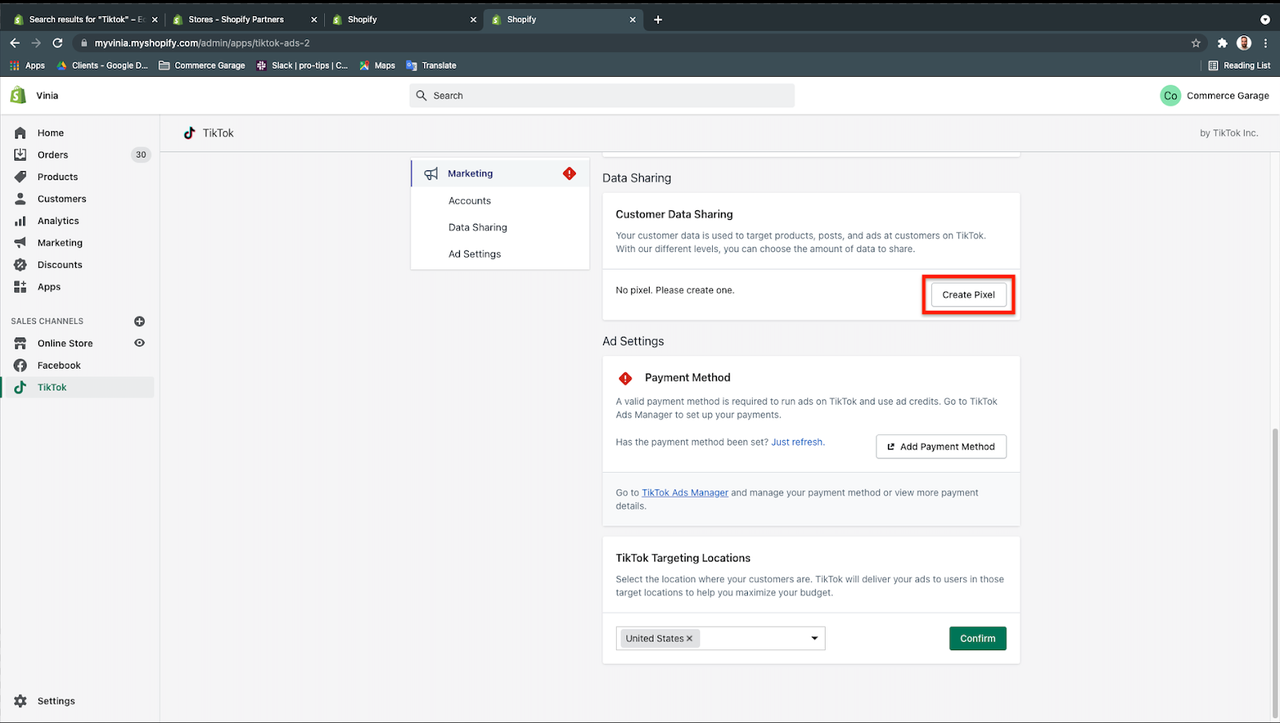
Or click on the “Create Pixel” button, and TikTok will automatically create your Pixel. Connect it, then click on confirm.
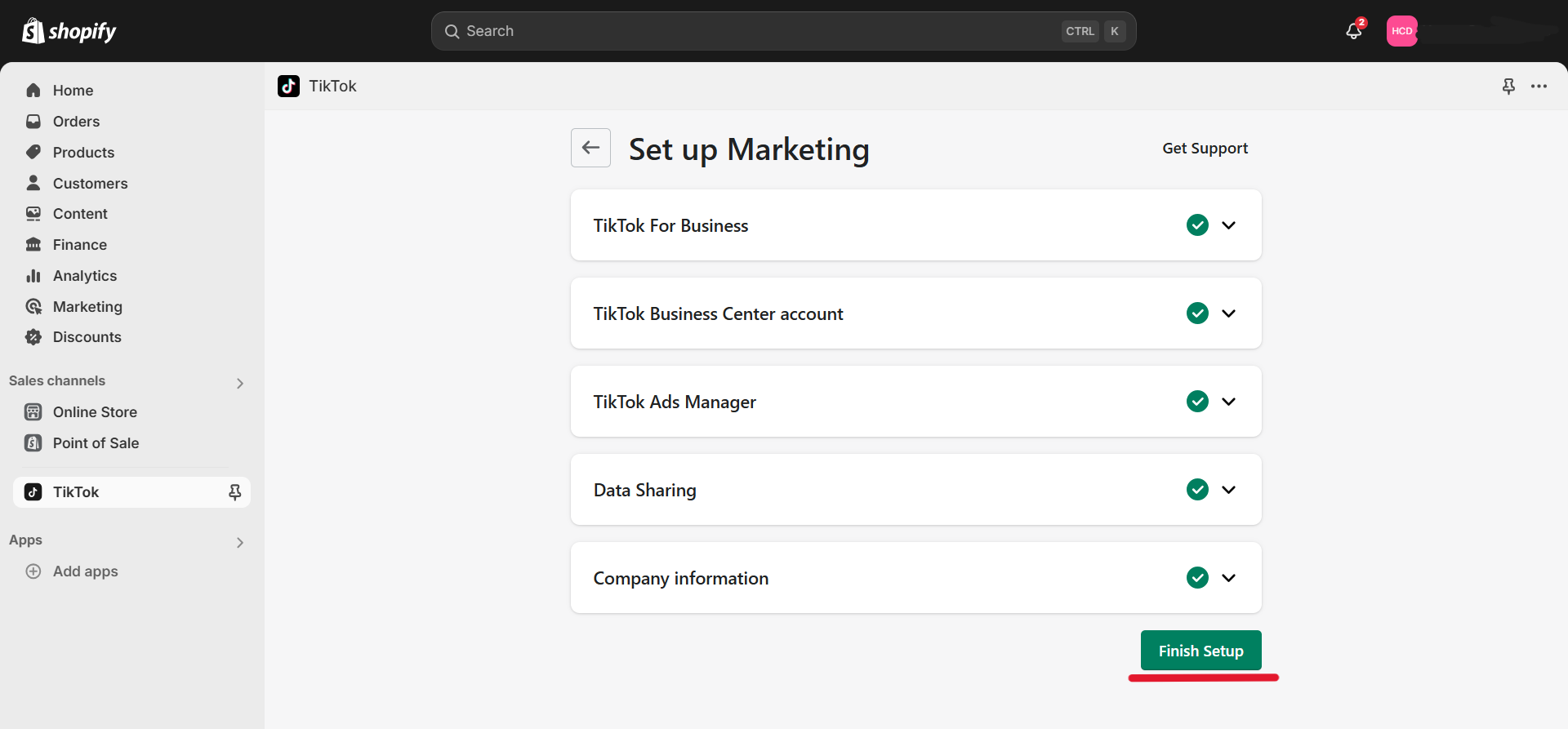
2. Click on "Finish Setup".
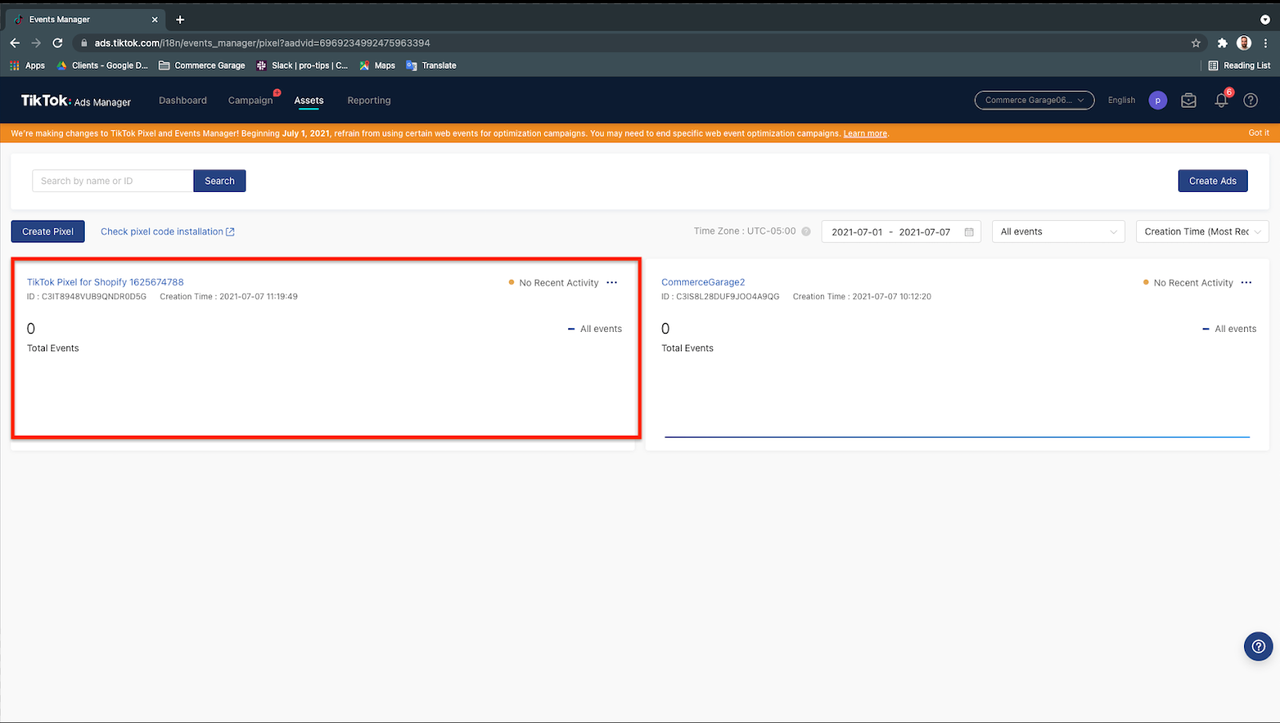
Step 6 – Ensure your correct Ad account is connected with your Shopify store and Pixel is Active in TikTok Ads.
1. Log in to your TikTok Business Account.
2. Hover over assets and click on events.
3. Find the Pixel you created in Shopify — and you’re good to go!
How To Test Pixel Events
If you want to test your pixel events, please follow the link to test events.


 +92-337-2499502